How to run code analyses in offline mode
Overview
The standard CAST Imaging Analyzer tool (whether being used via the UI, the CLI or in a Docker container) functions in “online” mode: i.e. an internet connection is required during the deep analysis on the local machine to download any required analysis resources (such as CAST extensions) and to upload the results to CAST Imaging Express automatically.
However, where no internet connection is available on the local machine (for example in a secure air gapped environment), CAST provides dedicated “offline” analyzers that contain all required analysis resources. Results generated by these analyzers must be manually transferred to an environment where internet access is available so that they can be uploaded to and consulted in the CAST Imaging Express Saas environment.
Two offline analyzers are available:
- Offline Analyzer - a Microsoft Windows installer, run in UI mode or CLI mode
- Offline Docker Analyzer - a Docker image that runs on any host where Docker Engine is installed (Microsoft Windows, macOS or Linux)
Offline analyzers are also useful when the analysis must be run by someone else, such as a partner, supplier or another team: neither analyzer requires an API key, a license or a CAST Imaging Express account.
In summary, the differences between online and offline mode are:
Online:
- A lightweight CAST analyzer setup file to minimize server space usage.
- Runs an initial profiling step to detect the technologies and application composition.
- Automatically fetches discovered technology extensions required for the deep analysis.
- Performs the deep analysis and securely uploads only the deep analysis results to the CAST Imaging Express instance.
- No source code is uploaded to CAST Imaging Express. If AI Transaction Summary is enabled, the source code of each object is sent to your organization’s own AI provider to generate summaries; the source code is never stored.
- All deep analysis results uploaded to the CAST Imaging Express instance are encrypted via AES-256/RSA-2048.
Offline:
- A comprehensive dedicated offline setup or Docker image containing all the required extensions (requires more storage space on your local machine).
- No internet access, API key, license or CAST Imaging Express account is required during installation, profiling and deep analysis.
- Conducts a profiling and deep analysis locally.
- Requires the deep analysis results to be manually uploaded to the CAST Imaging Express instance.
- No source code is transferred, even during manual uploads.
- All manual uploads to the CAST Imaging Express instance are encrypted via AES-256/RSA-2048.
- Information about open-source components found in the analyzed source code is not provided (this is provided in the online mode).
Microsoft Windows offline analyzer
How do I obtain the dedicated offline tool?
When logged in to your CAST Imaging Express Saas account, click Start analysis then choose the Offline Analyzer download option:
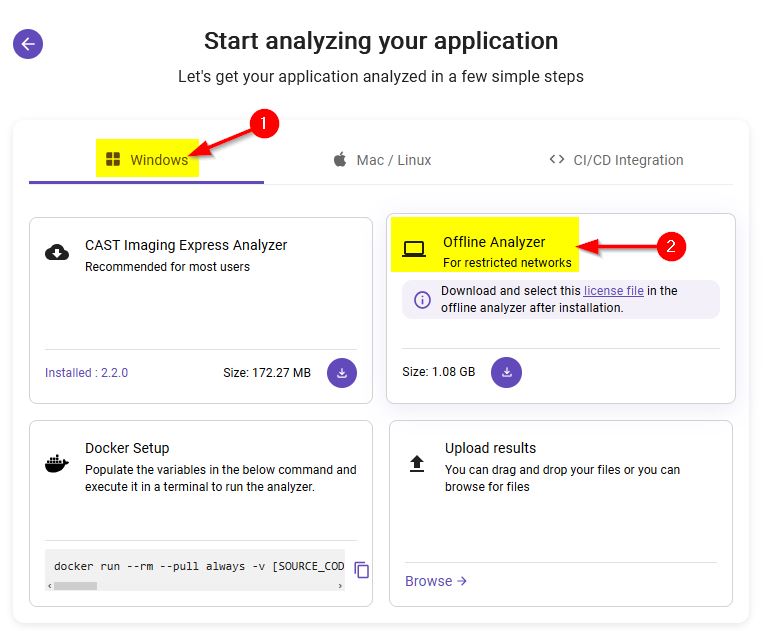
When downloaded, double-click the executable to install it on your local machine. This tool will co-exist with the standard “online” CAST Imaging Analyzer tool on the same machine.
The download is approx. 1GB.
How do I run an offline analysis?
UI mode
Run the tool from the desktop shortcut created during the installation, or run the CAST-Imaging-Express-Offline-Analyzer.exe file from the following location:
%PROGRAMFILES%\CAST\Imaging-Express-Offline
Click Get Started and follow the on screen prompts to complete your source code analysis. No license is required.
CLI mode
The dedicated “offline” tool contains a command line utility available here:
%PROGRAMFILES%\CAST\Imaging-Express-Offline\CAST-Imaging-CLI.exe
You must use the CAST-Imaging-CLI.exe file provided with the offline tool. The command line flags are identical to the flags provided in the “online” CLI tool.
Use the following flag in your command line to enable offline mode:
-of, --offline
For example, to run the profiling and deep analysis steps, and then store the analysis results in a dedicated folder, use the following command line:
"C:\Program Files\CAST\Imaging-Express-Offline\CAST-Imaging-CLI.exe" run -n "application1" -o "C:\CAST\offline\application1\results1" -s "C:\CAST\source_code\application1" -of -sp "C:\CAST-Imaging-Offline-Analyzer\extensions"
Where:
-n: is the name of the application-o: is the location on disk in which to store the results (if you omit this flag, results are stored in a date stamped folder in%PROGRAMDATA%\CAST\CAST-Imaging-CLI\<application-name>)-s: is the location on disk of the source code to analyze-of: enables offline mode (upload to CAST Imaging Express is also disabled)-sp: the location of the CAST extensions on disk (if you omit this flag, the tool will use the default locationC:\CAST\Imaging-Express-Offline\extensions)
Logs are automatically stored in a file called <application-name>.log alongside the results, i.e. within the folder defined by the option -o or the default result storage location %PROGRAMDATA%\CAST\CAST-Imaging-CLI\<application-name>.
Where are the deep analysis results stored?
When the deep analysis is complete, the results file <application-name>.casticr is stored in the deep-analysis folder within the default result storage location, for example %PROGRAMDATA%\CAST\CAST-Imaging-CLI\application1\deep-analysis. If you are using the command line tool with the -o option, results are stored in the folder you define.
Docker offline analyzer
How do I obtain the Docker image?
When logged in to your CAST Imaging Express Saas account, click Start analysis, select the Docker tab, then copy the command from the Offline Docker Setup box:
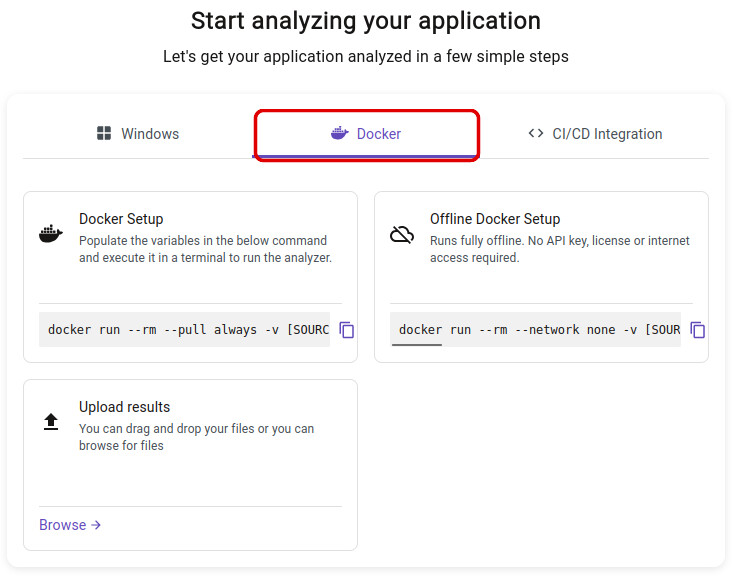
The image is published on Docker Hub as castimaging/imaging-docker-offline-analyzer and contains all the CAST extensions required for the analysis.
If the machine that runs the analysis has no internet access, pull the image on a machine that does, export it to a file, then load it on the offline machine:
# On a machine with internet access
$ docker pull castimaging/imaging-docker-offline-analyzer:latest
$ docker save -o imaging-docker-offline-analyzer.tar castimaging/imaging-docker-offline-analyzer:latest

# On the offline machine, after transferring the file
$ docker load -i imaging-docker-offline-analyzer.tar
How do I run an offline analysis?
Run the following command:
docker run --rm --network none -v [SOURCE_CODE_PATH]:/home/carl/extras/source -v [RESULT_PATH]:/home/carl/extras/results castimaging/imaging-docker-offline-analyzer:latest -n [APP_NAME]
Where:
[SOURCE_CODE_PATH]- is the path to the local folder containing your source code[RESULT_PATH]- is the path to a local folder where the results are written. This mount is mandatory: without it the analyzer stops, because the results would be lost when the container is removed[APP_NAME]- is your application name
Note that:
--network noneblocks all network access from the container, including access to the internet and to CAST services. For .NET applications, you can remove this option so that the analyzer can download missing NuGet packages from nuget.org , which may improve the analysis results.--rmautomatically deletes the container when the analysis is complete. Remove this option if you want to access the container after the analysis is complete.- No API key is required. If you pass
-ak, it is ignored and nothing is uploaded.
For example:
docker run --rm --network none -v /home/CAST/app1:/home/carl/extras/source -v /home/CAST/results:/home/carl/extras/results castimaging/imaging-docker-offline-analyzer:latest -n APP1
Where are the deep analysis results stored?
Each analysis writes to a date stamped folder (UTC) within the results folder you mounted, for example:
[RESULT_PATH]/APP1/20261123-101500/deep-analysis/APP1.casticr
The log file <application-name>.log is stored in the date stamped folder. The full path to the .casticr file is also displayed at the end of the command output.
What should I do with the deep analysis results?
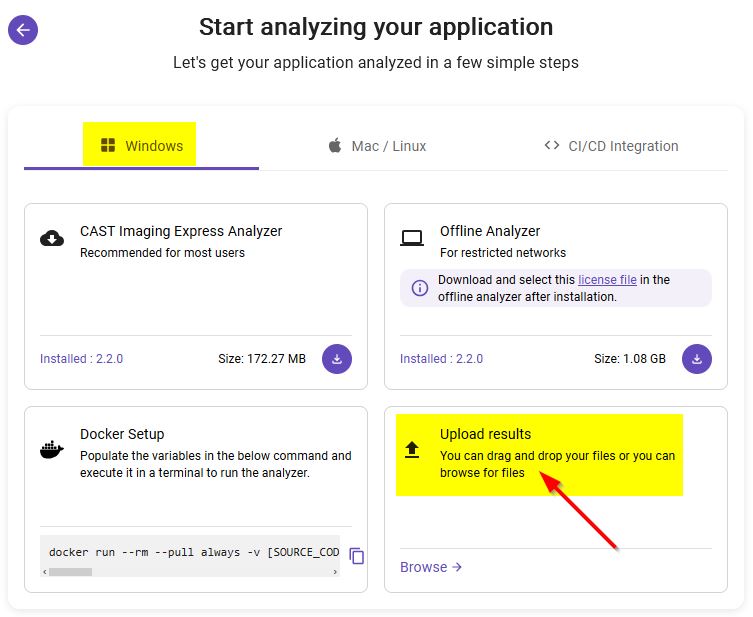
Transfer the results file <application-name>.casticr unmodified to an environment where internet access is available, then upload it to CAST Imaging Express: click Start analysis, then drag and drop the file onto the Upload results card or click Browse. The card is available on both the Windows and Docker tabs:
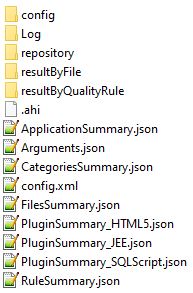
.casticr files are archive files and can therefore be extracted using software such as 7Zip - this allows you to view the results in more detail: