Use AI assistance
Overview
Did you know that CAST Imaging can interface with various third-party Artificial Intelligence services, allowing you to obtain additional AI-driven insight into your application source code? You can obtain information about specific objects, objects within the scope of your application and about specific transactions.
There are two ways to work with AI and CAST Imaging, and you can use either or both:
- The CAST Imaging MCP Server - a standalone server that lets you query CAST Imaging results from your own AI client, such as GitHub Copilot or Claude Desktop.
- AI options in the CAST Imaging UI - AI-driven features that you access directly from the CAST Imaging interface, for example to summarise a scope or explain an object.
Both options are described below.
AI via the CAST Imaging MCP Server
You can interface CAST Imaging with AI clients such as GitHub Copilot and Claude Desktop using the standalone CAST Imaging MCP Server.
An MCP (Model Context Protocol) server is a standardized way for AI applications to connect to external data sources and tools, acting as a secure bridge between the AI and external systems. The CAST Imaging MCP Server exposes CAST Imaging results to your AI client through the CAST Imaging API, so you can ask natural-language questions about your application architecture, transactions, quality insights and code objects from within your own AI client.
This option suits users who already work with an AI client and want to combine CAST Imaging insight with their existing AI-assisted workflow. It is configured outside CAST Imaging: an administrator installs the MCP Server, then you connect your AI client to it.
To set up and use the MCP Server:
- Connect your AI client, try example prompts and check the connection - see Connect your AI client.
- See what you can ask and which tools are available - see CAST Imaging MCP.
- Install the MCP Server (administrators) - see Install the CAST Imaging MCP Server.
- Read answers to security and data safety questions - see Frequently Asked Questions.
AI options in the CAST Imaging UI
All AI-driven services provided by CAST Imaging provide additional information about the code within your application. For example, you may want to find out exactly what a specific object is designed to do, based on AI’s interpretation of its code, or, you may want to get more insight into the full chain of a transaction in your application.
How does it work?
To enable these features, obtain an API key or other configuration settings from a supported AI provider, configure it in CAST Imaging via the Admin option and enable the AI-driven CAST Imaging services you require. A user with the Administrator role is required to configure the settings.
You can find out more in AI Settings:
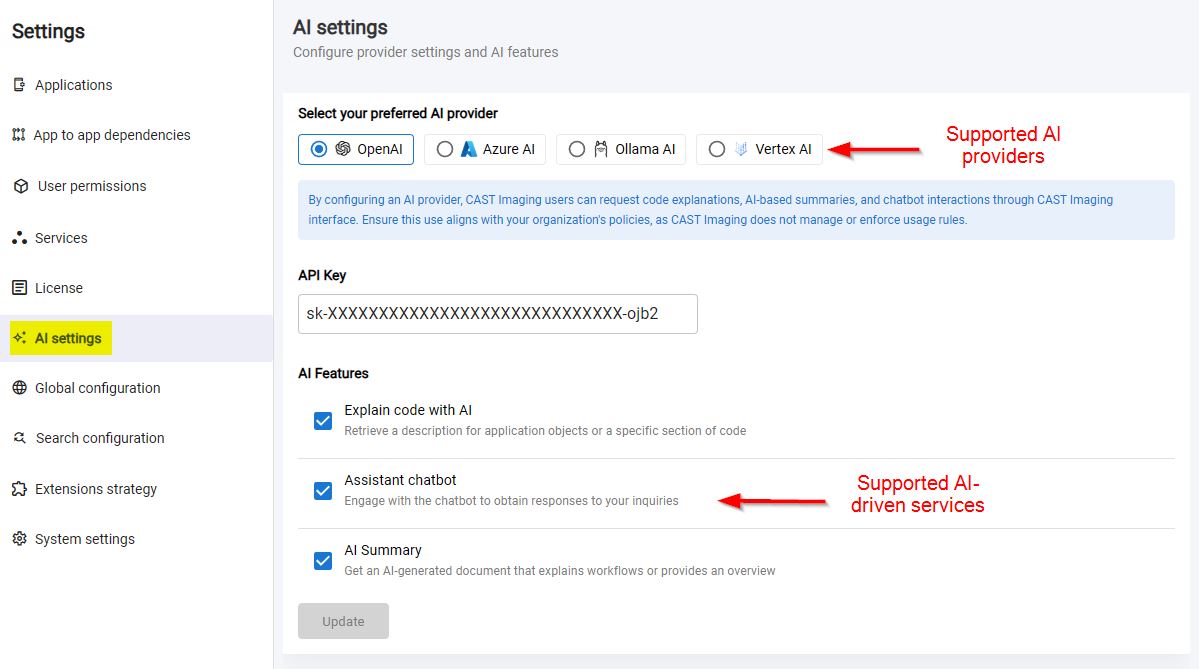
Users additionally need the AI Features Access role to run any of the features listed below. Without it, the AI screens remain visible and any results generated previously can still be consulted, but generating new AI output is blocked with the message “You are unauthorized to access AI Features. Please contact your administrator.” See Default profiles and roles.
The options reached from Customize the results - the Bulk AI Summary tab, the Module Assistant tab and GraphRAG - need the separate AI Features Customization role instead.
Available features
There are eight main AI-driven features available:
- Generate AI Summary - summarise the purpose of any scope (including in bulk) and save it as a Post-It.
- Ask CAST Imaging Available in ≥ 3.6.8-funcrel- AI-powered agents that choose and run the tools they need to explore the application, trace the impact of a change and investigate quality. Called CAST Imaging Agents in 3.6.8-funcrel.
- CAST Imaging Assistant chatbot - ask direct, natural-language questions about your application.
- Explain Object Context with AI - explain an object together with its immediate callers and callees.
- Explain Object with AI - explain an object’s code directly in the source code viewer.
- AI Functional Report - generate a functional summary report for a selected scope.
- Define objects with AI Mode - describe the objects you want in plain English, in Custom Aggregation and Global Search, and let the AI build the query.
- Query your application with GraphRAG - generate a semantic knowledge graph for an application and query it with natural-language questions through the MCP Server.