Log in and navigate the results Welcome page
Overview
This page walks you through logging in to CAST Imaging for the first time and orienting yourself to the Welcome page.
Before you start
- CAST Imaging must be installed and running
- You need valid credentials (or the default
admin/adminCAST Imaging local user credentials on a fresh install). Starting 3.6.5-funcrel, you are required to change this password on first login. See Keycloak accounts and passwords
Step 1 - Log in
- Open a browser and navigate to your CAST Imaging URL (e.g.
http://localhost:8090orhttp://machine.corp.company.com:8090) - Enter your username and password and click Sign in
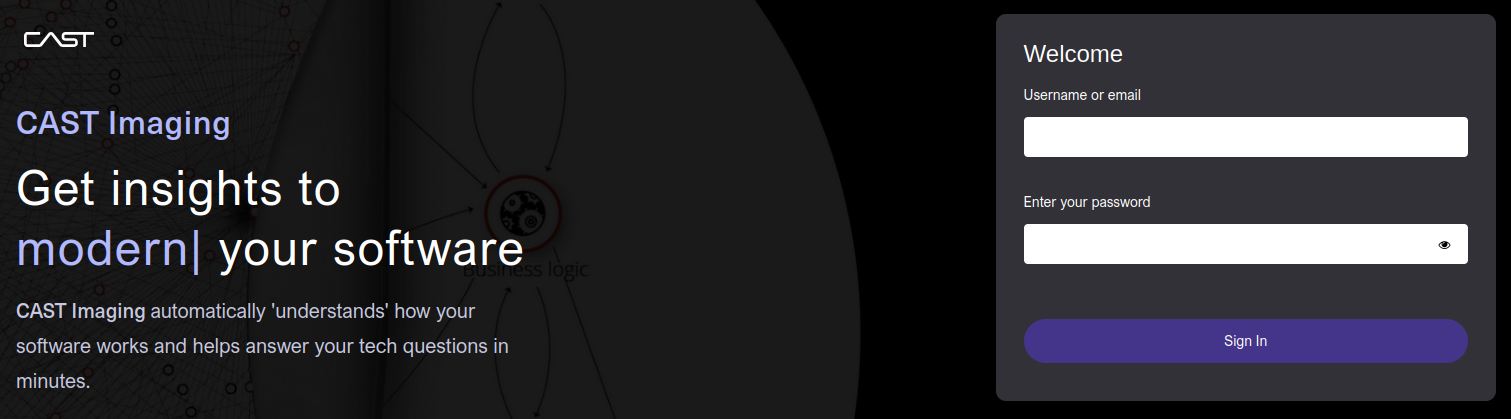
If this is the first login after installation, use the default admin / admin credentials. See Authentication and User permissions for more details about this subject.
Step 2 - Select an application
After logging in you will see the list of applications you have access to. Click Ready to view to access the results:
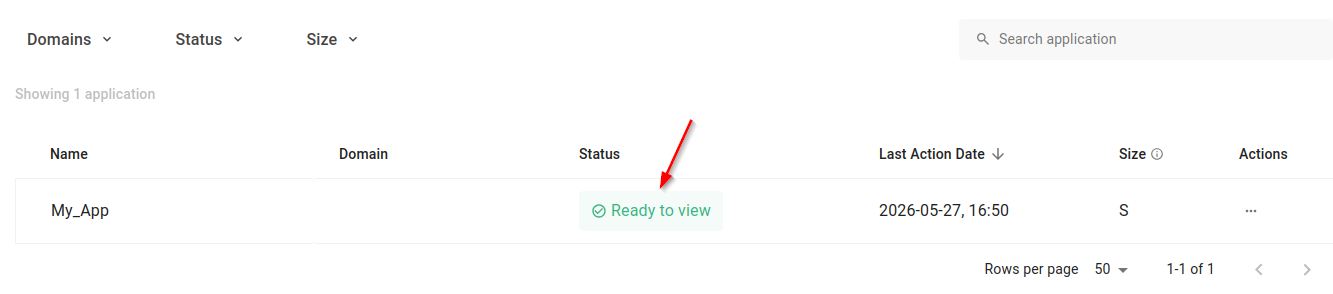
If no applications are listed, you need to onboard one first - see Onboard a simple application.
Clicking the row opens the Viewer allowing you to see the analysis results. Where the optional dashboards component is installed, the application’s Actions menu also offers View Engineering Dashboard, View Management Dashboard and View Security Dashboard - a different route to the same results.
See Explore results for both routes in detail.
Step 3 - Explore the Viewer results Welcome page
The results Welcome page displays tiles organized into groups (tailored views) that give quick access to common analysis views:
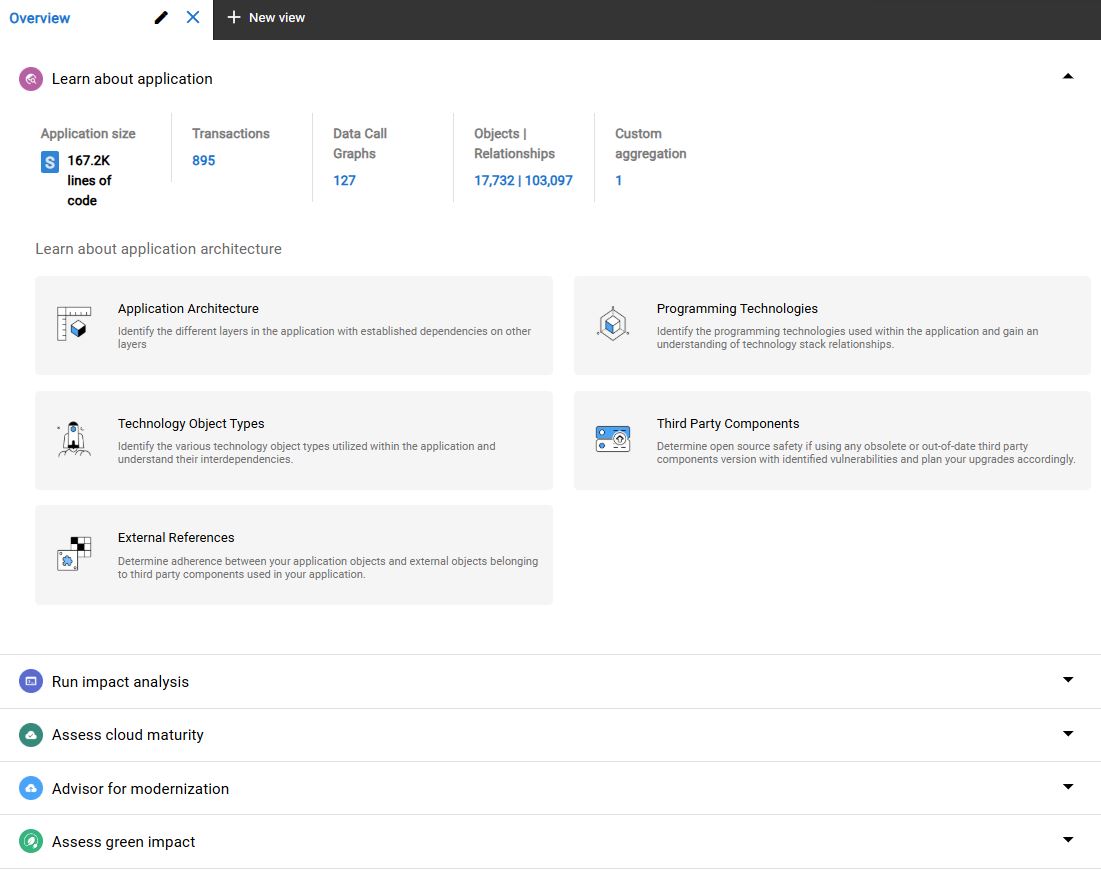
| Tile group | What it shows |
|---|---|
| Learn about your application | Architecture overviews, module maps, dependency graphs |
| Run impact analysis | Impact analysis, call graphs, object tracing |
| Advisor for modernization | Modernization advisor, technology upgrade paths |
| Improve application quality | Security findings, performance insights |
| Assess green impact | Environmental scoring |
Click any tile to open the corresponding view directly.